Alight Motion vs InShot: Which Video Editing App Is Better in 2026?
Let me be honest with you. I have used both of these apps, not just for testing, but for actual projects. I have exported Reels with InShot at 2 AM when I just needed something done fast, and I have spent hours inside Alight Motion trying to get a single keyframe animation just right. So when people ask me about Alight Motion vs InShot, I do not give a generic answer. I give them the real picture.
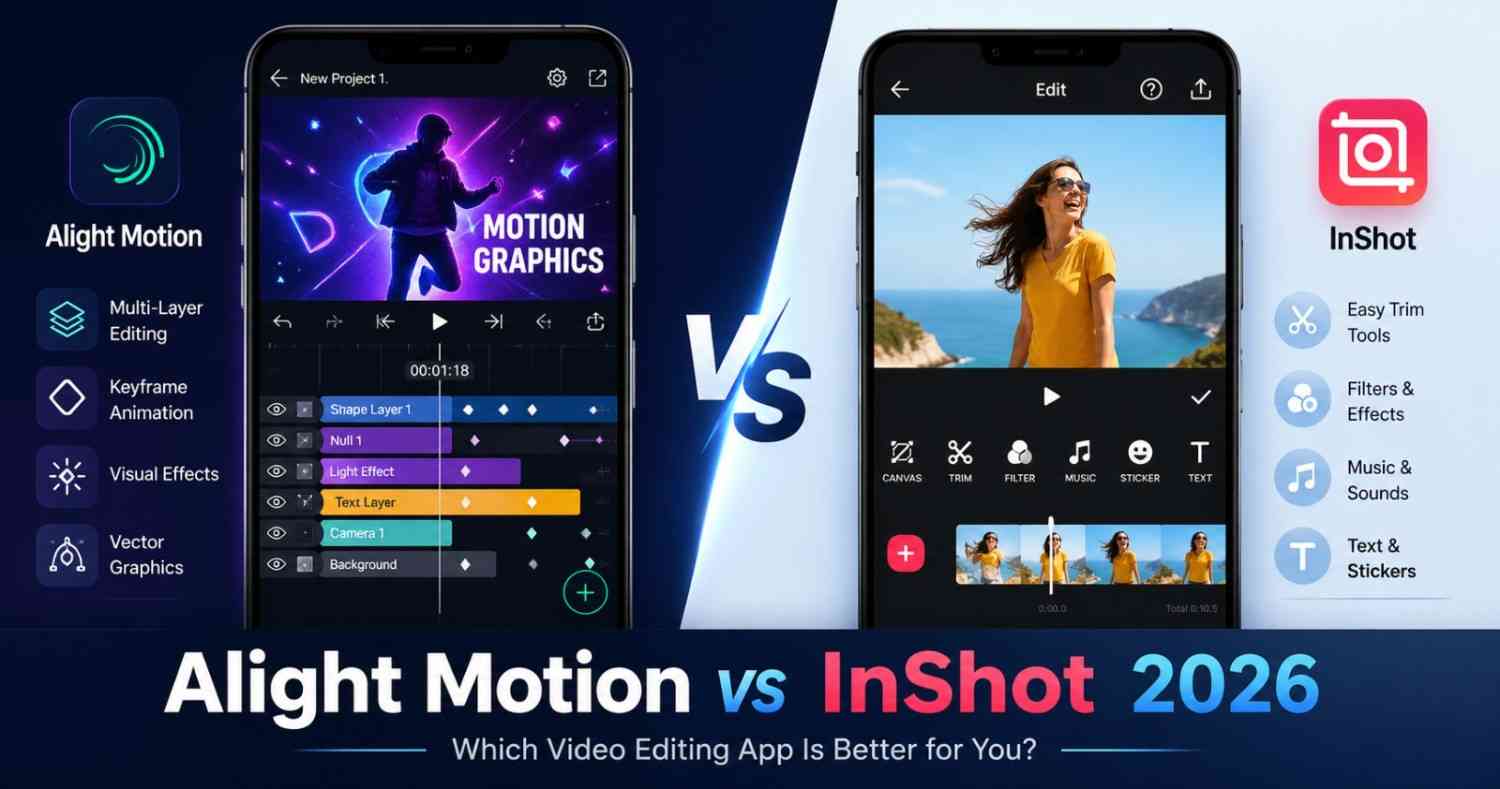
The Alight Motion vs InShot debate comes down to one core question: do you need speed and simplicity, or creative power and control? Both apps are genuinely good, but for completely different people. If you pick the wrong one for your needs, you will waste time and get frustrated. This guide will make sure that does not happen to you.
Quick Overview: Alight Motion vs InShot at a Glance
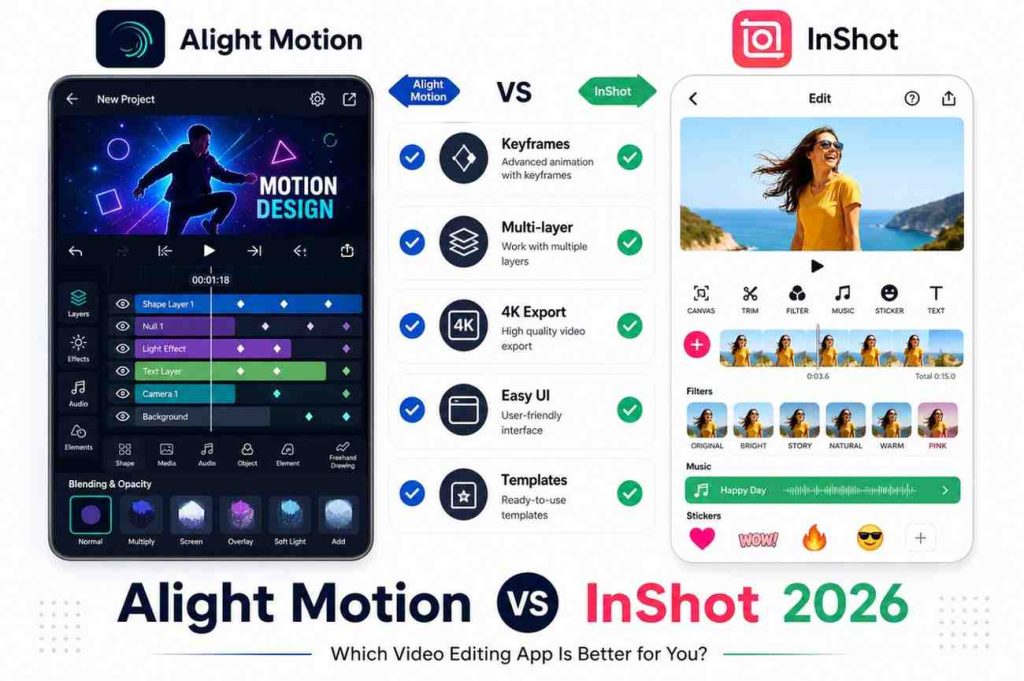
Before diving deep, here is a fast comparison table to give you the full picture upfront:
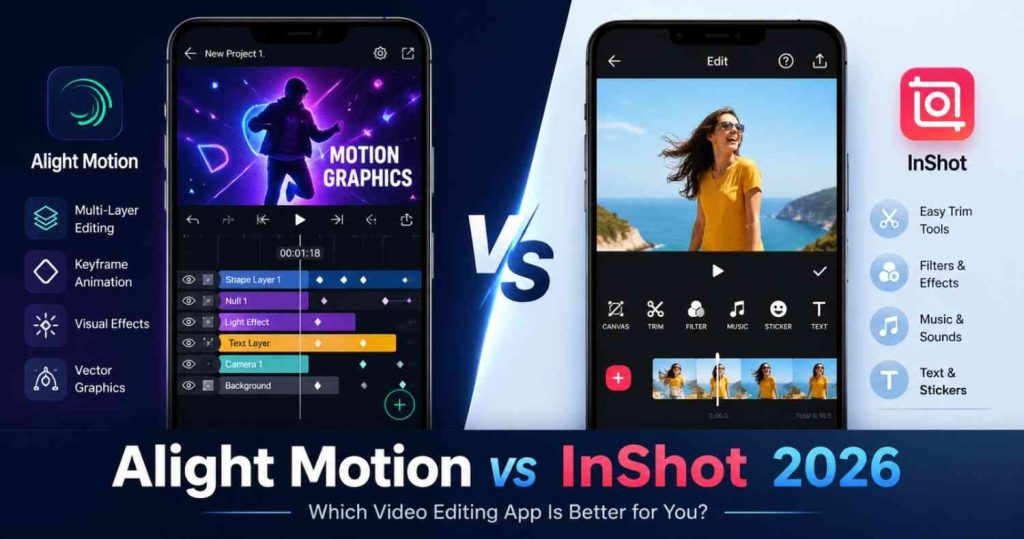
| Feature | Alight Motion | InShot |
|---|---|---|
| Best For | Motion graphics, animation, pro editing | Quick edits, social media, beginners |
| Ease of Use | Moderate to advanced | Very easy |
| Keyframe Animation | Yes (advanced) | Basic only |
| Multi-layer Editing | Yes | Limited |
| Vector Graphics | Yes | No |
| Export Quality | Up to 4K (Pro) | Up to 4K |
| Free Version | Yes (with watermark) | Yes (with watermark) |
| Monthly Price | ~$4.99/month | ~$3.99/month |
| Annual Price | ~$29.99/year | ~$17.99/year |
| Platforms | Android, iOS | Android, iOS |
| Learning Curve | Steep | Gentle |
Best for Beginners: InShot, no question.
Best for Professionals and Animators: Alight Motion, hands down.
Best for Social Media (TikTok, Reels): InShot for speed; Alight Motion for quality.
Core Difference in 3 Lines:
The core of the Alight Motion vs InShot debate is this: Alight Motion is a motion graphics studio packed into a phone app. It is built for creators who want control over every single frame. InShot is a fast, clean video editor that gets you from raw footage to a polished post in minutes. One is a power tool, the other is a Swiss Army knife. Both are useful, just not always for the same purpose.
What Is Alight Motion?
If you are researching Alight Motion vs InShot because you want to understand what each app actually is before comparing features, this section is for you.
Alight Motion was developed by Alight Creative Inc. and launched in 2018. From day one, it was positioned as something different, not just another mobile video editor, but a full motion design application for smartphones and tablets.
When I first opened Alight Motion, I was honestly a little overwhelmed. There were layers, keyframes, blend modes, and vector tools. These are things I expected to find in Adobe After Effects on my desktop, not on a phone. But that is exactly the point. Alight Motion was built for creators who want desktop-level creative control without being chained to a laptop.
The app is perfect for animators, graphic designers, motion graphics creators, and anyone producing content where the movement of elements matters. If you have ever watched a viral edit where text glides perfectly in sync with a beat drop, or seen a smooth transition that feels almost cinematic, there is a very good chance Alight Motion was behind it.
Who should use Alight Motion?
- Video editors with some experience
- Motion graphics and animation creators
- Designers making branded content
- Creators doing complex multi-layer projects
- Anyone making YouTube intros, title sequences, or logo animations
Platforms: Android and iOS. No official desktop app, but it runs on PC via Android emulators like BlueStacks or LDPlayer, though the experience is not fully optimized for mouse and keyboard.
Key Features of Alight Motion
Multi-layer Editing
This is where Alight Motion genuinely separates itself from most mobile apps. You can stack multiple video tracks, graphics layers, audio tracks, and alight motion effects all on a single timeline, very similar to how a professional NLE (Non-Linear Editor) works. When I was building a complex lyric video with animated text and a background clip, having this multi-layer control was the only thing that made it possible on mobile.
Keyframe Animation
Keyframes let you define where an object should be at a specific point in time, and the app smoothly transitions between those positions. You can animate position, opacity, scale, rotation, and color. The level of control here is genuinely impressive. You can even use Bezier easing curves to control the speed of the animation, just like in professional tools.
Vector Graphics Support
Alight Motion supports vector-based drawing, meaning you can create shapes and illustrations that stay sharp no matter how much you scale them. This is a big deal for logo animations and text treatments.
Visual Effects and Blending Modes
With over 160 customizable effect building blocks and multiple blend modes including Multiply, Screen, and Overlay, you can create visual styles that are completely unique. Color grading, light leaks, chromatic aberration, and motion blur are all available inside the app.
Audio Syncing and Timeline Control
The multi-track audio timeline lets you layer music, voiceovers, and sound effects independently. You can adjust volume curves per track, which is something most mobile editors simply cannot do.
Export Formats
Alight Motion exports in MP4 (H.264 and HEVC), GIF animation, and PNG sequences. This makes it versatile for everything from social media videos to animated stickers to frame-by-frame sequences for other editors.
What Is InShot?
Now that you know what Alight Motion brings to the table, let us look at the other side of the Alight Motion vs InShot comparison.
InShot is a clean, no-nonsense video editing app that does exactly what it promises. It helps you make great-looking videos quickly. I have been using it for years, and every time I just need to trim a clip, add music, throw on some text, and post something, InShot is my first choice.
It was built from the ground up for content creators who are focused on social media. Everything about the interface reflects that priority. The layout is clean, the tools are labeled clearly, and you can go from importing a clip to exporting a finished video in under five minutes.
What makes InShot special is not complexity. It is simplicity done right. No unnecessary clutter. No steep learning curve. Just solid editing tools that work reliably.
Who should use InShot?
- Absolute beginners picking up video editing for the first time
- Social media content creators on TikTok, Instagram, YouTube Shorts
- People who need fast turnaround without learning a complex app
- Casual creators who edit a few times a week
- Small business owners and influencers creating quick product videos
Key Features of InShot
Basic Editing Tools: Trim, Cut, Split
InShot’s timeline is simple and gesture-based. Trimming a clip takes two seconds. Splitting is one tap. These basics work flawlessly, which matters more than you would think. Many apps get the advanced stuff right but fumble on the essentials. InShot does not.
Filters, Transitions and Effects
InShot offers a solid library of filters and transitions that are easy to preview and apply. They are not the most unique effects in the world, but they are polished and professional-looking enough for social content.
Music and Sound Effects
InShot has a built-in music library, and you can also import your own audio files. The beat-sync feature, which automatically matches cuts to music beats, is genuinely useful for making Reels and TikToks feel more dynamic.
Text, Stickers and Emojis
Adding animated text, stickers, and emoji overlays is quick and fun. The text editor offers a range of fonts and animation styles. Nothing revolutionary, but more than enough for most social posts.
Export Quality
InShot supports HD and 4K export even on its free tier for basic quality settings. The Pro version unlocks higher frame rates and premium export options.
Alight Motion vs InShot: Feature-by-Feature Comparison
When you put Alight Motion vs InShot side by side on a feature level, the differences become very clear, very fast. Let us go through each one.
Interface and Ease of Use
This is the biggest practical difference between the two apps.
InShot’s interface is one of the most beginner-friendly I have ever used. You open the app, import your video, and every tool you need is right there. Trim, speed, filters, text, music. The icons are intuitive. The workflow is linear and logical. If you have never edited a video in your life, you could figure out InShot in 20 minutes without watching a single tutorial.
Alight Motion, on the other hand, greets you with a layer-based timeline that resembles a lite version of After Effects. The first time I opened it, I spent 15 minutes just figuring out how to add a simple text overlay. That is not a criticism. It is just the reality of using a powerful professional tool. The learning curve is real, but so is the payoff once you master it.
Winner: InShot for beginners, without any hesitation. Alight Motion for experienced editors. The depth is worth it.
Editing Tools and Workflow
InShot covers all the fundamentals: trim, cut, split, merge, speed control, reverse, crop, and background fill. For social media content, that is genuinely everything you need.
Alight Motion goes further with multi-layer compositing, masking, chroma key (green screen), velocity-based motion blur, and parent-child layer linking for complex animations. The workflow in Alight Motion is more non-linear. You can jump between layers and timeline points freely.
Winner: Alight Motion for depth; InShot for speed.
Motion Graphics and Animation Capabilities
This is where the two apps live in completely different universes.
Alight Motion was built for motion graphics. Keyframe animation works on every single property including position, scale, rotation, opacity, color, and blur radius. Anything you can change, you can animate over time. I have used this to create animated lower thirds for YouTube videos, smooth kinetic typography, and logo reveals that looked like they were made in After Effects.
InShot has some basic animation. Text can appear with entrance effects, stickers can bounce, but you cannot set custom keyframes and you cannot animate individual properties with precision. It is preset-based animation, not true motion graphics.
Winner: Alight Motion. It is not even close.
Visual Effects, Filters and Customization
InShot has a clean collection of filters and effects, many of which look genuinely good for social content. The options are curated and consistent, which means they are easy to apply without things looking mismatched.
Alight Motion’s effects library is significantly larger and more customizable. The app uses an effects building block system where you can combine 160+ base effects to create unique looks. Blend modes, color grading curves, distortion effects, light effects, and particle effects all push the creative ceiling much higher.
Winner: Alight Motion for creative control; InShot for ease and consistency.
Text and Typography Options
InShot has a solid text editor with multiple font choices, colors, backgrounds, and entrance/exit animations. It is enough for 90 percent of social media text needs.
Alight Motion’s text tools are more powerful. You can animate individual characters, apply custom per-letter keyframes, use vector-based text rendering, and combine text with blend modes for unique visual treatments. If text design and kinetic typography are important to your content, Alight Motion wins this round clearly.
Winner: Alight Motion for typography power; InShot for ease.
Audio Editing and Synchronization
InShot handles audio well for a social-focused app. You can add music from its library or import your own, set volume levels, fade in and out, and use the auto beat-sync feature. It does the job cleanly.
Alight Motion’s audio editing is multi-track. You can have several independent audio layers running simultaneously, each with their own volume adjustments. This is essential for complex projects where you need music, dialogue, sound effects, and ambient sound all layered together.
Winner: Alight Motion for complex projects; InShot for quick audio work.
Templates, Presets and Creative Assets
InShot has a growing library of templates, particularly for Reels and TikTok formats, that make it easy to produce trendy content quickly. Many are well-designed and regularly updated.
Alight Motion has a large community-driven ecosystem of XML presets and project templates that creators share openly, especially on YouTube and Telegram communities. These presets can be incredibly complex and impressive. However, finding and applying them requires more effort. You are downloading XML files, not just clicking a template button.
Winner: InShot for accessibility; Alight Motion for creative depth once you learn the community ecosystem.
Video Export Quality and Supported Formats
Both apps support up to 4K export. Alight Motion supports MP4 (H.264 and HEVC), GIF, and PNG sequences. InShot supports MP4 in various quality levels, with higher resolutions and frame rates unlocked in the Pro version.
In my testing, Alight Motion’s exports retain excellent detail especially on complex graphics and animations. InShot’s exports are clean and consistently well-optimized for mobile sharing.
Winner: Tie. Both export excellent quality at their respective price tiers.
Performance and App Stability on Android and iOS

This is an area where InShot holds a clear advantage.
InShot is lightweight and runs smoothly on a wide range of Android and iOS devices. Even on mid-range phones with 3 to 4GB RAM, InShot handles editing without significant lag.
Alight Motion, with its heavy feature set and multi-layer rendering, is more demanding. On low-end devices, performance degrades noticeably when you have 5 or more layers with effects running simultaneously.
On my mid-range Android phone, complex projects with 8 or more layers caused occasional stutters during preview playback, though the final export was always clean. On flagship phones with Snapdragon 8-series or Apple A-series chips, Alight Motion performs very well.
Winner: InShot for low-end and mid-range devices; Alight Motion performs best on higher-end hardware.
Pricing and Subscription Plans: Alight Motion vs InShot
Price is often the deciding factor when choosing between Alight Motion vs InShot, especially for students, beginners, and independent creators who need value for money. Here is the full breakdown of which is better for your budget.
Alight Motion Pricing
Alight Motion has a free version available on both Google Play and the App Store. The free tier gives you access to core editing tools, but every export gets a watermark, which looks prominent and will make your content look unfinished if you are posting professionally.
The Pro subscription typically costs around $4.99 per month or approximately $29.99 per year. The annual plan works out to about $2.50 per month, which is genuinely reasonable for the feature set you are getting. Pro removes the watermark completely and unlocks the full effects library, premium assets, and 4K export capabilities.
One common complaint is that the free version feels intentionally limited. The watermark is large, and many premium effects are locked. It is more of a try-before-you-buy experience than a truly usable free tier.
InShot Pricing
InShot’s free version is more generous than Alight Motion’s. You can do real, complete edits on the free tier. The watermark is smaller and less intrusive, and a wider range of basic features remains accessible without paying.
InShot Pro costs approximately $3.99 per month or around $17.99 per year. The Pro version removes ads, removes the watermark, and unlocks premium filters, effects, transitions, and fonts. The pricing is cheaper than Alight Motion, which makes it a lower commitment.
InShot also has a lifetime purchase option, usually around $34.99 to $39.99 depending on region and sale timing, which is great value if you plan on using it long-term.
Winner: InShot. Cheaper plans, more generous free tier, and the lifetime option is a real advantage.
Device Compatibility and System Requirements: Alight Motion vs InShot
Android Support:
Both apps are available on Android and support Android 5.0 and above. Alight Motion performs best on Android devices with 4GB or more of RAM and a mid-to-high-tier processor. InShot runs comfortably on devices with 2GB RAM.
iOS Support:
Both apps are available on iPhone and iPad. Alight Motion iOS 13.0 or later; InShot requires iOS 12.0 or later. On iPad, both apps scale up reasonably well, though neither is specifically iPad-optimized.
PC Usage:
Neither app has an official Windows or macOS desktop version. However, Alight Motion can be run on PC using Android emulators like BlueStacks or LDPlayer. The experience is functional but not perfectly optimized for a desktop workflow. InShot has no official PC equivalent. For desktop video editing, the company recommends using InShot for Web, a separate browser-based product, for simpler tasks.
Pros and Cons of Alight Motion
Before making your final decision on Alight Motion vs InShot, it helps to see the strengths and weaknesses of each app laid out clearly.
Pros
- Genuine professional-grade motion graphics on mobile
- Keyframe animation on every property, unmatched on mobile
- Multi-layer timeline with full compositing control
- Vector graphics and custom drawing tools
- Huge community with free presets and XML project files
- Supports MP4, GIF, and PNG sequence exports
- Regular updates with new features and effects
Cons
- Steep learning curve, not beginner-friendly at all
- Free version has a large, prominent watermark
- Heavier on device resources; lags on low-end phones
- Higher subscription cost compared to InShot
- No official desktop version
- Complex interface can feel overwhelming initially
- Some premium effects require additional purchase beyond subscription
Pros and Cons of InShot
Pros
- Extremely easy to learn, perfect for absolute beginners
- Fast workflow for social media content
- Generous free tier with decent usability
- Affordable Pro pricing with lifetime purchase option
- Lightweight and runs well on almost any device
- Great templates for TikTok, Reels, and YouTube Shorts
- Beat-sync feature for music-driven edits
- Photo editing capabilities as a bonus
Cons
- Limited animation capabilities with no real keyframe control
- No multi-layer compositing
- Cannot do complex motion graphics or professional effects
- Templates can feel repetitive over time
- Less suitable as your skills grow beyond basic editing
- No vector graphics support
- Audio editing is basic with no multi-track layering
Use Case Breakdown: Which App Is Best for You?
This is the most important section of the entire Alight Motion vs InShot guide, because features do not matter as much as fit. Here is exactly who should use which app.
Best for Beginners
InShot wins this clearly. If you have never edited a video before and you want to start making content for TikTok or Instagram, InShot is the right starting point. You will be posting real, polished videos on your first day. With Alight Motion, you might spend your first day just learning how layers work, and that is fine eventually, but not when you are just getting started.
Best for Social Media Content (TikTok, Reels, YouTube Shorts)
InShot for speed; Alight Motion for standing out. If you want to post frequently and keep up with trends, InShot’s fast workflow and template library make it ideal. But if you want your TikToks and Reels to genuinely look different from everyone else’s, with custom animations, unique effects, and motion graphics that make people stop scrolling, Alight Motion is the path. The trade-off is time investment.
Best for Motion Graphics and Animation
Alight Motion. There is no competition. No other mobile app comes close to Alight Motion for motion graphics. If your content involves kinetic typography, animated logos, motion-tracked text, or any kind of animated graphic design, Alight Motion is simply the only mobile tool for the job.
Best for Professional Video Editing
Alight Motion edges ahead. For professional-quality output on mobile, Alight Motion’s multi-layer timeline, compositing tools, and precise animation control put it ahead. That said, if professional means producing clean, polished social content efficiently, InShot is genuinely professional at what it does.
Best for Quick Edits and Low-End Devices
InShot. No competition. If you have a budget phone or just need to edit something fast, InShot is the better choice. It is lighter, faster, and requires less processing power.
Alight Motion vs InShot: Real Performance Comparison
One of the most practical things you can know before choosing between Alight Motion vs InShot is how they actually perform on a real device, not on a spec sheet. This is a section that most comparison articles skip over, and it actually matters a lot in day-to-day use.
Speed and Loading Time
InShot loads faster and imports media quicker. On my device, InShot was ready to edit in about 4 seconds after opening. Alight Motion took 8 to 10 seconds and a few more taps to get to an active project.
Rendering Time
For a 60-second social media clip, InShot exports in approximately 15 to 25 seconds at 1080p. Alight Motion takes 45 to 90 seconds for a similarly-length project at 1080p, and longer when layers are complex. For 4K exports, rendering time increases significantly in both apps, but Alight Motion takes considerably longer due to its composition-based rendering.
App Crashes and Lag
InShot is noticeably more stable across devices. In extensive use, I have rarely seen InShot crash. Alight Motion, on complex projects with 7 or more layers and multiple effects, can occasionally stutter during live preview, though it has improved significantly in recent updates. On high-end devices with 2024 and 2025 flagship chips, both apps are stable.
Heavy Project Handling
InShot starts to struggle when you are managing very long timelines of 10 or more minutes or many clips. But for typical social media content under 3 minutes, it handles everything smoothly. Alight Motion is designed for complex projects. It handles multiple layers and effects better than most mobile apps, but it does demand hardware resources in return.
Community Support and Learning Resources: Alight Motion vs InShot
Alight Motion Community
This is one of Alight Motion’s hidden strengths. The app has an incredibly active community, particularly on YouTube, where thousands of creators post tutorials, preset packs, and full project walkthroughs. Telegram groups share free XML presets that can make even beginner projects look stunning. The Alight Motion subreddit and Facebook groups are also active. If you are willing to learn, you will never run out of resources.
InShot Community
InShot has strong beginner tutorial coverage on YouTube, and its official support is responsive. However, the community depth does not match Alight Motion’s, primarily because InShot does not have a preset ecosystem that encourages community sharing in the same way. Most InShot tutorials are focused on social media trends rather than deep technical skill-building.
Alternatives to Alight Motion and InShot
If neither app perfectly fits your needs after this Alight Motion vs InShot comparison, these alternatives are worth knowing.
CapCut
CapCut is the current king of social media editing tools. It is free, feature-rich, has excellent templates, and a growing AI toolkit. If InShot feels too simple but Alight Motion feels too complex, CapCut sits in a great middle ground. It is particularly strong for TikTok content as it is made by ByteDance, TikTok’s parent company.
KineMaster
KineMaster is a professional mobile video editor that competes more directly with traditional NLEs. It has strong multi-layer support, precise timeline control, and a large asset store. It is better for traditional video editing workflows than animation-focused work.
VN Editor (VlogNow)
VN Editor is a solid free editor with a clean interface, good color grading tools, and smooth performance. It is particularly popular with vloggers and travel content creators.
Adobe Premiere Rush
Adobe Premiere Rush is Adobe’s mobile-friendly video editor that connects to the full Premiere Pro ecosystem. It is good for creators who are already invested in Adobe’s software suite. It is more limited on mobile compared to the desktop version, but reliable and professional.
Final Verdict
After testing both apps extensively, the Alight Motion vs InShot answer is clear, and it comes down to what you actually need.
Choose InShot if:
You are new to video editing, you create content primarily for social media, you want fast results without a learning curve, or you are working on a budget phone. InShot will serve you reliably for years of content creation.
Choose Alight Motion if:
You want to create motion graphics, you need keyframe animation control, you are building visually complex content, or you are serious about developing professional mobile editing skills. The learning curve is real, but so is the ceiling. Alight Motion can grow with you for as long as you want to keep improving.
Can you use both?
Yes, and many creators do. Many creators use InShot for quick daily content and switch to Alight Motion when they need to create something more polished or technically complex. They genuinely complement each other.
In 2026, both apps remain the best in their respective categories. InShot owns the quick and easy space. Alight Motion owns the creative and powerful space. Know which space you need to be in, and the Alight Motion vs InShot choice becomes easy. You have already made the right decision by reading this guide.
FAQ’s
Is Alight Motion better than InShot for beginners?
No. For beginners, InShot is significantly easier to learn and use. Alight Motion has a steep learning curve due to its advanced feature set. Things like multi-layer timelines, keyframe editors, and blend modes are not beginner-friendly. InShot lets beginners create polished videos within their first session. Once you have built some editing experience, Alight Motion becomes a rewarding next step.
Which app is better for animation, InShot or Alight Motion?
Alight Motion is far superior for animation. It supports full keyframe animation on every property including position, scale, rotation, opacity, and color, with Bezier easing curves for smooth, professional motion. InShot only offers preset-based entry and exit animations for text and stickers. There is no true keyframe animation control in InShot. For any serious animation work on mobile, Alight Motion is the only real option.
Does InShot have keyframe animation?
InShot has limited keyframe support, primarily for basic properties like position and scale on stickers and text elements. However, it does not offer the deep, property-level keyframe control that Alight Motion provides. You cannot animate blend modes, color properties, vector shapes, or create complex motion paths in InShot the way you can in Alight Motion.
Is Alight Motion free to use?
Yes, Alight Motion has a free version available on both Android and iOS. However, the free version exports videos with a visible watermark and restricts access to many premium effects and features. The Pro subscription at approximately $4.99 per month or $29.99 per year removes the watermark, unlocks all premium features, and enables higher quality exports. The free version is useful for learning the app, but for professional use, the Pro version is essentially necessary.
Which app is best for YouTube video editing?
It depends on the type of YouTube content you make. For vlogs, tutorials, or simple talking head videos where you need clean cuts, music, and basic graphics, InShot handles this well, especially for editing on mobile. For YouTube intros, title animations, motion-graphics-heavy content, or anything requiring a polished animated look, Alight Motion is the stronger choice. Many serious YouTubers use both: InShot for quick supplementary content and Alight Motion or a desktop NLE for main channel videos.