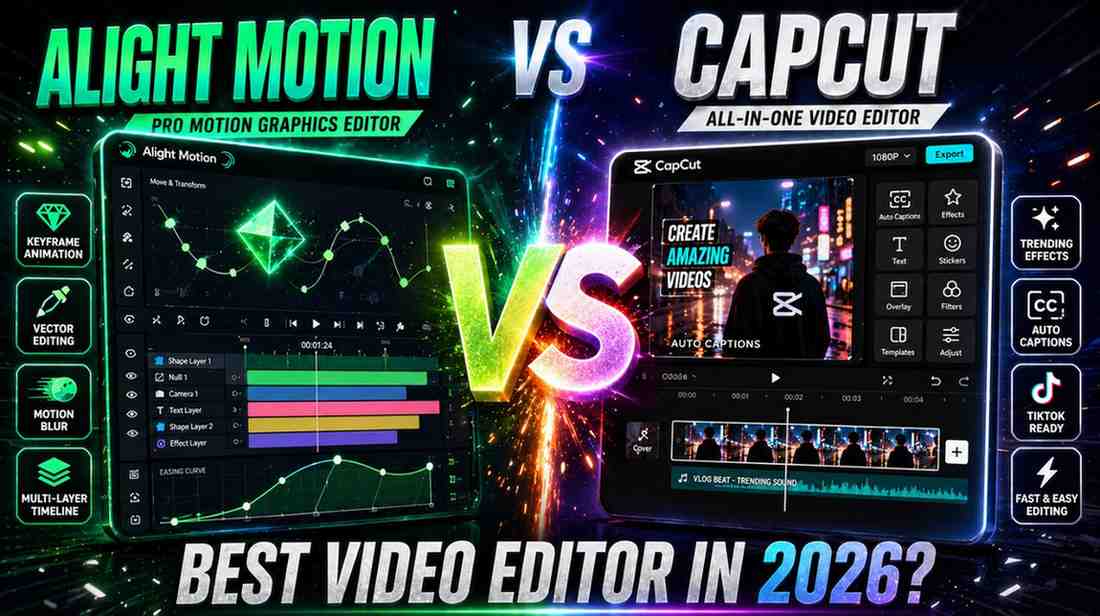
Alight Motion vs CapCut | Which Video Editing App Is Best in 2026?
Quick Comparison
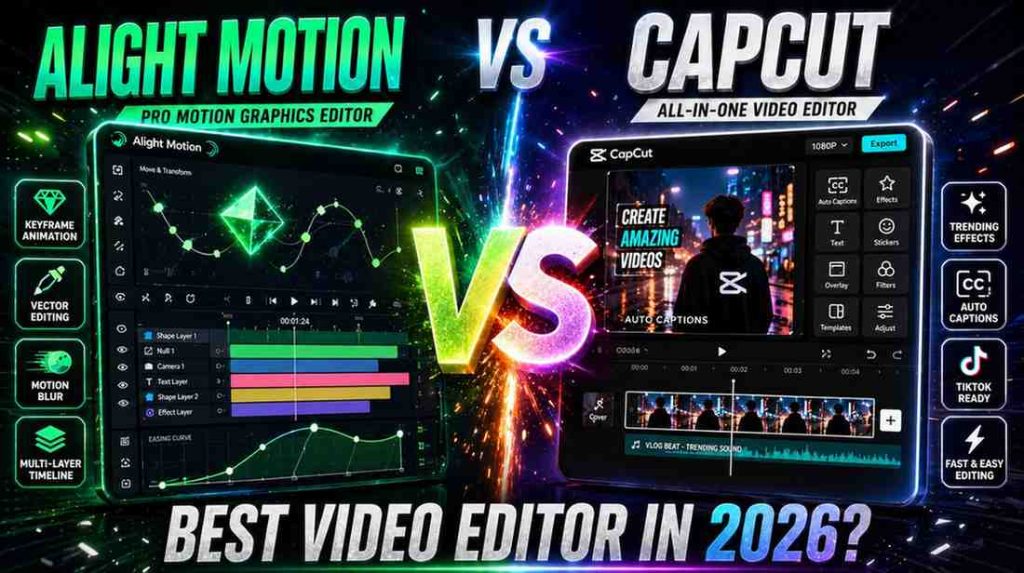
If you’re short on time, here’s the bottom line: CapCut is the best app for beginners and social media creators fast, free, and AI-powered. Alight Motion is the best app for professional animators and motion designers advanced keyframe animation, vector graphics, and total creative control.
| Feature | Alight Motion | CapCut |
|---|---|---|
| Target Users | Animators, Designers | Beginners, Social Media |
| Keyframe Animation | Advanced ✓ | Basic Only |
| AI Tools | Limited | Powerful – Auto Cut, Captions |
| Learning Curve | Steep | Beginner-Friendly |
| Watermark (Free) | Yes (paid to remove) | No Watermark ✓ |
| Vector Graphics | Yes ✓ | No |
| Templates | Limited | 600+ Trending |
| 4K Export | Yes ✓ | Yes ✓ |
| Free Version Value | Limited | Excellent |
| Professional Depth | Industry-Level | Moderate |
Which App Should You Choose for Each Use Case?
- TikTok / Reels / Shorts: CapCut trending templates, fast workflow, direct sharing
- Motion Graphics / Lyric Videos: Alight Motion keyframe animation, vector graphics
- YouTube Content: Both rough cut in CapCut, final polish in Alight Motion
- Beginner First Video: CapCut professional-looking results within minutes
- Professional / Freelance Work: Alight Motion unique, client-ready output
Overview – What Are Alight Motion and CapCut?
What Is Alight Motion?
The first time I opened Alight Motion, I was trying to create an animated logo intro for a client. Honestly, those first 10 minutes felt overwhelming so many layers, so many options. But once I got the hang of it, going back to anything simpler felt like a downgrade.
Alight Motion is a professional-grade mobile video editing and motion graphics app originally developed by Alight Creative Inc. and later acquired by Bending Spoons. Launched in 2018, it was one of the first mobile apps to bring vector graphics, keyframe animation, and multi-layer editing directly to smartphones, setting it apart in the Alight Motion vs CapCut debate among mobile editors.
If you’ve ever used Adobe After Effects or Premiere, Alight Motion is essentially its mobile counterpart simplified but surprisingly powerful.
What Is CapCut?
I first used CapCut to edit a friend’s wedding highlight done in 20 minutes flat. From that day on, I’ve always called it the ‘speed app.’
CapCut:originally called JianYing was developed by ByteDance (TikTok’s parent company), launched in China in 2019 and released globally in 2020. It is built for rapid content creation: AI-powered features, 600+ trending templates, auto-captions everything in one place. For social media creators, it’s an absolute dream tool.
Who Are These Apps Designed For?
The most important thing to understand: both apps target completely different audiences. Alight Motion Mod Apk is built for graphic designers, animators, and professional editors. CapCut is built for everyday creators, beginners, and social media influencers. They don’t really compete they serve different categories. So the real answer to ‘which is better’ depends entirely on what you’re trying to create.
Core Features Comparison – Understanding the Real Differences
Timeline & Layer System – Stacking vs Simplicity
When I first opened Alight Motion’s timeline, it felt like a professional NLE multiple video tracks, audio layers, shape layers, each completely independent. Alight Motion lets you stack unlimited layers, each with its own animation properties. For professional editing, this is a game-changer. CapCut’s timeline is cleaner and simpler a beginner can figure it out in five minutes. But when you need complex layering, CapCut starts to feel limiting.
| Real Example: When editing a lyric video managing text, background, particles, and music beat sync all at once Alight Motion wins by a wide margin. Doing the same in CapCut quickly becomes a frustrating experience. |
Keyframe Animation Capabilities
This is where Alight Motion’s true power really shows. With keyframe animation, you control every element frame-by-frame position, scale, rotation, opacity, blur, color, everything. And because Bezier curve support is built in, your animations feel genuinely smooth and cinematic, which is a major advantage in the Alight Motion vs CapCut comparison.
CapCut does support keyframes, but only at a basic level. You can add simple movements, but you can’t match Alight Motion’s complex easing curves or multi-property animation depth.
Built-in Tools vs Advanced Controls
CapCut’s strongest suit is its built-in toolkit auto cut, auto captions, background remover, sky replacement, object eraser all AI-powered, all working with a single tap. For beginners, it feels like magic. Alight Motion requires you to control everything manually blending modes, masks, expressions but that control produces output that’s far more unique and polished. Creators who want a distinct identity in their editing choose Alight Motion.
Visual Effects & Animation Power
Alight Motion – Advanced Motion Graphics & Vector Support
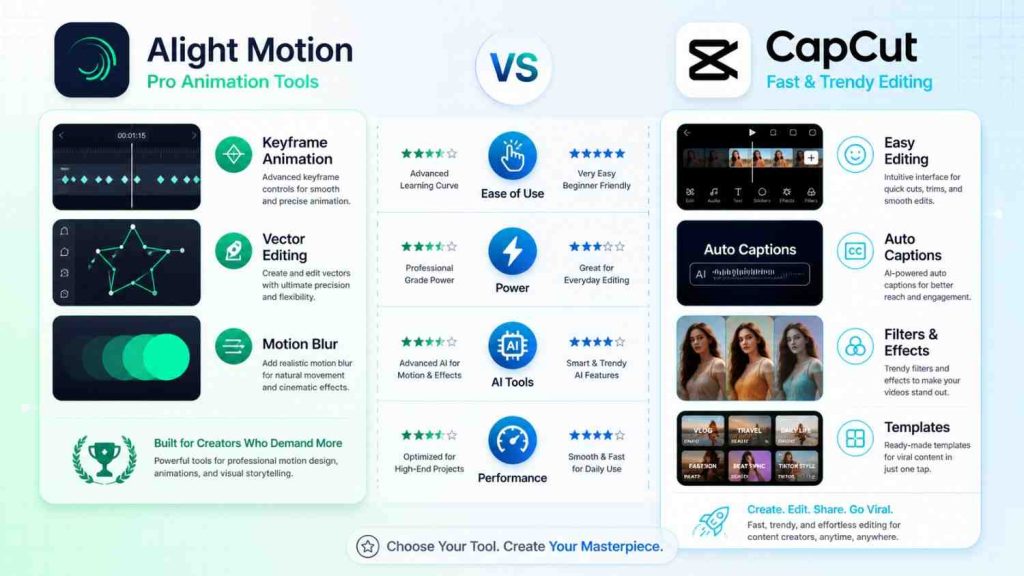
Alight Motion’s biggest differentiator is vector graphics support. Vector means your shapes, logos, and designs stay razor-sharp at any resolution zero quality loss. You’ll rarely find this feature in competing mobile apps. Add to that 140+ built-in effects, blending modes (Screen, Multiply, Overlay, etc.), motion blur, and precise color correction tools and you have a genuinely professional creative environment on your phone.
CapCut – Ready-Made Effects, Filters & Viral Templates
CapCut has built a library of 600+ visual effects and filters that is constantly updated to match trending styles. Glitch, retro, dreamy, cinematic all available with a single tap. Combined with its template library, this makes CapCut the go-to tool for creating viral content fast. In the Am Mod vs CapCut discussion, if you want your video trending today, CapCut gets you there faster.
Real Visual Output Comparison – Quality & Creativity
CapCut’s output looks immediately impressive especially for beginners. But Alight Motion’s output is truly unique. I edited the same concept in both apps once: the Alight Motion version took 3 hours and looked cinematic; the CapCut version took 25 minutes and was perfect for social media. Both outputs were excellent they just serve different goals.
Text, Graphics & Templates Comparison
Text Animation & Typography Options
CapCut offers 100+ font styles, 240 bubble styles, 300 text effects, and 175 motion effects plus an AI-powered auto-caption feature that generates subtitles automatically. For podcasters and vloggers, that alone is a massive time-saver.
Alight Motion’s text customization and keyframe-based text animation are far more advanced, though. You can animate every text property spacing, color, blur, scale over time. For lyric videos and custom animated titles, Alight Motion is unbeatable.
Stickers, Overlays & Design Assets
CapCut has a rich built-in library of stickers, overlays, and GIF elements accessible directly within the app. For social media, these assets add instant fun and engagement. Alight Motion has fewer ready-made assets, but you can build fully custom shapes and overlays from scratch which is ultimately more powerful for serious creators.
Template-Based Editing vs Manual Creativity
CapCut is a template-first app choose a template, drop in your footage, and your video is ready. The speed is unmatched. Alight Motion is a creation-first app no shortcuts, but everything you build is genuinely yours. When it comes to Alight Motion vs CapCut, both approaches are completely valid; your goal determines which is better.
User Interface & Learning Curve
Beginner-Friendly Experience – CapCut
My 17-year-old cousin wanted to learn video editing. I handed him CapCut and two hours later, he’d made his first Reel. That tells you everything. CapCut’s UI is completely intuitive: tools at the bottom, timeline in the middle, preview at the top. Every icon is clear, everything is labeled. Open the app and start editing it is genuinely that simple.
Advanced Editing Experience – Alight Motion
Alight Motion’s interface is designed for experienced editors. Layers panel, properties panel, curve editor, expression engine it looks overwhelming the first time you open it. But once you master it, nothing else comes close in terms of editing speed and creative control. Expect a 2–4 week learning investment to feel truly comfortable but it’s absolutely worth it if you’re serious about content creation.
Workflow Speed & Editing Efficiency
| Speed vs Quality: Tight deadline? Use CapCut. Quality is the priority? Use Alight Motion. The best approach: combine both rough edit in CapCut, final polish in Alight Motion. |
Performance, Speed & Stability
Low-End vs High-End Device Performance
I tested both apps on a mid-range phone with 4GB RAM. CapCut ran smoothly throughout almost no lag, fast timeline scrubbing, responsive playback. Alight Motion got noticeably heavier on complex projects, especially with 5+ layers. On high-end devices (8GB+ RAM), both apps run very smoothly.
Lag, Crash Issues & Optimization
CapCut’s stability is clearly better on average devices. Alight Motion’s complex rendering engine can crash on low-RAM devices during heavy projects. This is a real concern if you’re using an entry-level phone. Professionals on high-end hardware rarely encounter this issue.
App Size & Resource Usage
CapCut’s app size is larger (~600MB+) because templates and assets are downloaded on demand. Alight Motion starts lighter but consumes significantly more CPU during effects rendering and export. In terms of storage, both are comparable over time.
Export Quality & Format Options
Resolution Support – HD, 4K, FPS
Both apps support Full HD (1080p) and 4K resolution export. Alight Motion’s export settings are far more granular you can manually select bitrate, frame rate (24fps, 30fps, 60fps), and color space. CapCut’s export is more streamlined: choose a quality preset and export. Simpler, but slightly less control.
Export Formats & Compression
CapCut primarily exports MP4, which is perfect for social media. Alight Motion offers MP4, GIF, and multiple codec options suited to professional workflows. If you’re sharing directly to TikTok or Instagram, CapCut’s integrated publish feature is genuinely unbeatable.
Watermark & Quality Differences
| Important: CapCut exports without a watermark in its free version. Alight Motion adds a watermark on free exports a premium subscription (~$4.99/month) is required to remove it. For budget-conscious beginners, this clearly tips the scales toward CapCut. |
Audio Editing & Sound Features
Music Library & Sound Effects
CapCut’s royalty-free music library is enormous thousands of tracks, sound effects, and trending audio clips synced with TikTok trends in real time. This feature alone makes CapCut the winner for social media creators. Alight Motion has no built-in music library you must import your own audio files.
Voiceover & Audio Sync
CapCut includes in-app voiceover recording and automatic audio sync. You can also apply beat-based transitions automatically. In Alight Motion, voiceovers must be imported manually and beat sync is set by hand more control, but more effort.
Audio Control & Editing Tools
For detailed audio editing, Alight Motion has the edge volume keyframing, per-layer audio control, and precise sync tools. CapCut’s audio toolkit is simpler but effective: fade in/out, volume control, basic equalizer. For podcasters or voice-heavy content, Alight Motion is better; for casual creators, CapCut is more than enough.
AI Features & Automation – The Hidden Winning Factor
CapCut AI Tools – Auto Captions, Auto Cut, Background Removal
CapCut’s AI toolkit in 2026 is genuinely impressive.
Auto Captions: one click, subtitles generated automatically in multiple languages. Auto Cut: the app detects beats and places cuts automatically.
Background Removal: no green screen needed.
Sky Replacement, Object Eraser, Face Enhancement: all available instantly.
These tools dramatically accelerate content creation and allow even total beginners to produce professional-looking results.
Alight Motion Manual Control vs AI Limitation
To be honest, Alight Motion lags significantly in AI tools. Alight Motion’s philosophy is: you are in control. No auto-cut, no AI captions, no background removal. Whether that’s a limitation or a feature depends on your perspective. Professional editors who prefer manual precision love this approach but for mass-market appeal, CapCut is clearly winning.
AI vs Manual Editing – Which Is Actually Better?
AI tools save time. Manual tools produce quality when in the right hands. The best approach: use both together. Rough cut and captions in CapCut, then final polish in Alight Motion. This is the workflow many professional creators are using right now in 2026.
Pricing & Cost Comparison
Free vs Paid Features
CapCut’s free version is extremely generous nearly all features available, no watermark, direct export. The Pro features are mostly AI-related tools that casual creators won’t even miss. This is a key point in the Alight Motion vs CapCut debate Alight Motion’s free version is usable, but the watermark is a real barrier for creators who want to maintain clean branding.
Subscription Plans & Value for Money
| Plan | Alight Motion | CapCut |
|---|---|---|
| Free Version | Available (with watermark) | Available – No Watermark ✓ |
| Monthly Plan | ~$4.99/month | ~$7.99/month |
| Annual Plan | ~$2.99/month equivalent | ~$4.99/month equivalent |
| What Unlocks | No watermark, all effects | AI tools, premium templates |
Hidden Costs – Watermark, Premium Assets
Alight Motion’s main hidden cost is the watermark mandatory on the free tier for any creator who cares about their brand. CapCut has some premium templates and AI features behind a paywall, but basic editing is completely free. For tight budgets, CapCut is clearly the more accessible option.
Pros and Cons – The Clear Decision Section
Alight Motion Pros & Cons
| ✓ PROS | ✗ CONS |
|---|---|
| ✓ Professional-grade keyframe animation | ✗ Watermark on free version |
| ✓ Vector graphics support (unique on mobile) | ✗ Steep learning curve for beginners |
| ✓ Unlimited multi-layer editing | ✗ Heavy on low-RAM devices |
| ✓ Advanced blending modes & color tools | ✗ No built-in music library |
| ✓ Precise audio keyframing | ✗ Limited AI automation tools |
| ✓ Truly unique, personalized output quality | ✗ Slower workflow vs CapCut |
| ✓ 140+ customizable effects | ✗ No direct social media publishing |
| ✓ Available on both iOS and Android |
CapCut Pros & Cons
| ✓ PROS | ✗ CONS |
|---|---|
| ✓ Completely free – no watermark | ✗ No vector graphics support |
| ✓ Powerful AI tools – captions, auto cut | ✗ Basic keyframe animation only |
| ✓ 600+ trending templates | ✗ Limited manual control for professionals |
| ✓ Huge royalty-free music library | ✗ Templates can produce generic-looking content |
| ✓ Beginner-friendly interface | ✗ ByteDance data privacy concerns |
| ✓ Direct TikTok/Instagram publishing | ✗ Some AI features require Pro subscription |
| ✓ Fast workflow – full video in minutes | ✗ Less unique output vs Alight Motion |
| ✓ Regular trend-based content updates |
Best Use Cases – User Intent Based Section
Best App for TikTok / Reels / Shorts
Winner: CapCut not even close. Trend-synced templates, direct publishing, auto captions, beat-based cuts CapCut was literally built for this. If short-form social media content is your primary focus, download CapCut and move on.
Best for Motion Graphics & Animation
Winner: Alight Motion clearly and decisively. Logo animations, animated overlays, lyric videos, motion-tracked text, custom visual effects Alight Motion is the dedicated platform for all of this. CapCut is seriously limited for these use cases.
Best for YouTube Content Creation
For YouTube, the answer depends on your content type. Vlogs, tutorials, quick reviews CapCut is fast and effective. Cinematic videos, channel intros, motion-graphics-heavy content Alight Motion is better. Most serious YouTubers actually use both: rough edit in CapCut, final polish in Alight Motion.
Beginners vs Professionals
- Beginner? Start with CapCut. You’ll get results fast and stay motivated. Once you’re comfortable a few months in then explore Alight Motion.
- Professional? Alight Motion should be your primary tool. Use CapCut as a secondary for AI features like captions and background removal.
Alight Motion vs CapCut – Side-by-Side Final Verdict
| Situation | Alight Motion | CapCut |
|---|---|---|
| TikTok Viral Content | – | ✓ Winner |
| Logo / Intro Animation | ✓ Winner | – |
| Lyric Video Editing | ✓ Winner | – |
| Beginner’s First Video | – | ✓ Winner |
| YouTube Vlog | – | ✓ Winner |
| Cinematic Short Film | ✓ Winner | – |
| Auto Captions/Subtitles | – | ✓ Winner |
| Freelance Client Work | ✓ Winner | – |
| Budget-Friendly (Free) | – | ✓ Winner |
| Complex Visual Effects | ✓ Winner | – |
| Final Recommendation: If you’re a beginner choose CapCut. If you’re a serious editor learn Alight Motion. Ideally, keep both. One gives you speed, the other gives you skill. Use them together and take your editing to the next level. |
How to Choose Between Alight Motion and CapCut?
If You Are a Beginner
Start with CapCut – zero hesitation.
Download the app, pick a trending template, drop in your footage, and export. You’ll get a great result on day one. That confidence will keep you going. Once you feel comfortable a couple of months in then start exploring Alight Motion PC.
If You Are an Advanced Editor
Alight Motion should be your primary tool.
Keyframe animation, vector graphics, blending modes these features unlock unlimited creative possibilities. Use CapCut as a secondary tool for AI features like auto-captions and background removal. That combination is the most powerful mobile editing workflow available in 2026.
If You Want to Create Content Fast
CapCut – the fastest content creation tool on mobile.
If your goal is to publish daily or weekly content and speed matters more than uniqueness, CapCut is the answer. A creator friend of mine did a 30-day Reel challenge using only CapCut. By day 15, one of his videos had gone viral. Speed absolutely matters.
Best Tips to Maximize Your Video Editing Results
Mobile Editing Best Practices
- Fix your footage first: Shoot in good lighting. No editing app can make bad footage look cinematic.
- Don’t just use templates blindly in CapCut: Start with a template, then customize it that’s what makes your output stand out.
- Name your layers in Alight Motion: When you have 10+ layers, unnamed layers create total chaos. Label everything.
- Keep your clips short: 10–15 second scenes are far easier to edit. Long clips increase complexity dramatically.
- Lock your audio first: Finalize your music or voiceover before syncing visuals this is the professional workflow.
Tips to Improve Performance
- Close all background apps when using Alight Motion keeping RAM free is critical for stability.
- Don’t import raw 4K footage directly into CapCut on slow phones compress first.
- Turn off battery saver mode while editing it throttles CPU performance significantly.
- Clear app cache regularly both apps slow down over time due to cache build-up.
Hacks for Professional-Level Results
- Combine both apps: Rough edit in CapCut, final polish in Alight Motion the best of both worlds.
- Focus on color grading: A consistent LUT or color tone gives your channel a professional identity.
- Use fewer transitions: Over-the-top transitions look cheap. Simple cuts read as more professional.
- Never skip sound design: 50% of perceived video quality is actually in the audio. Subtle background music and sound effects make a massive difference.
FAQ’s
Alight Motion vs CapCut which one is better?
Both apps are better for different purposes. CapCut is best for beginners and social media creators it’s fast, free, and AI-powered. Alight Motion is best for professional animators and motion designers with advanced keyframe animation and vector graphics. Neither is universally ‘better’; your use case decides.
Is CapCut the best app for beginners?
Yes, absolutely. CapCut is the best mobile video editing option for beginners. Its simple interface, trending templates, and AI tools allow new users to create professional-looking videos within minutes with no prior experience required.
Is Alight Motion used for professional video editing?
Yes! Alight Motion is widely used in the industry for professional motion graphics, lyric videos, animated intros, and visual effects. Its keyframe animation system, vector graphics support, and multi-layer editing are genuinely professional-grade tools.
Are both apps free?
Both apps are free to download. CapCut’s free version is nearly fully functional with no watermark. Alight Motion’s free version includes a watermark a premium subscription (~$4.99/month or ~$2.99/month annually) is needed to remove it and unlock all features.
Which app exports without a watermark?
CapCut exports watermark-free on its free tier a major advantage for beginners. Alight Motion adds a watermark on free exports; removing it requires a paid subscription.
Conclusion
After two years of using both apps and editing hundreds of videos here is my honest answer:
CapCut is the best mobile video editing app in 2026 for beginners and social media creators. No watermark, powerful AI tools, trending templates, and the fastest workflow on mobile. When it comes to Alight Motion vs CapCut, if you’re just starting out or want to create daily content, download CapCut today.
Alight Motion is the best mobile app in 2026 for serious motion graphics and professional animation. If you want truly unique output, work with clients, or create animated videos learn Alight Motion. It takes time, but the results speak for themselves.
| Final Word: Keep both apps CapCut free, and Alight Motion premium if your budget allows. One gives you speed, the other gives you skills. Use them together and your editing will reach a completely different level. |