How to Import XML File in Alight Motion? (Beginner to Pro Guide 2026)
If you have ever downloaded a smooth shake effect or a cinematic color preset from Instagram or TikTok, chances are it came inside an XML file. I remember the first time I encountered one I downloaded the file, opened Alight Motion, looked around for an “Import” button, and found nothing. Closed the app. Tried again. Still nothing.
Turns out, I was doing it wrong. And honestly? Almost every beginner makes the same mistake.
This guide will walk you through exactly how to import XML files in Alight Motion on Android, on iOS, through Google Drive, through direct links plus how to fix every common error you will run into along the way. No fluff, just the real steps that actually work in 2026.
What is an XML File in Alight Motion? (Simple Explanation)
XML stands for Extensible Markup Language. In plain words, it is a text-based file that stores all the instructions for how an Alight Motion project should look and behave.
Think of it like a recipe. The XML file does not contain the actual video or images it contains the blueprint. Every keyframe position, every color value, every layer setting, every animation timing it is all saved inside that small file.
When you import it, Alight Motion reads those instructions and rebuilds the entire project right inside your app.
XML Preset vs Template vs Project File – What is the Difference?
This is where most people get confused, so let me break it down clearly:
- XML Preset: A saved set of effects, transitions, or animations that you can apply to your own videos. Think of shake effects, glow overlays, or text animations.
- XML Template: A full project with pre-built layers and timing that you just replace with your own media. Popular for intro cards, reels templates, or cinematic edits.
- XML Project File: An exact copy of someone’s complete project, including all layers, effects, and timeline structure.
All three are XML files. The difference is just in how much content they contain and how you use them.
How Does Alight Motion Use XML Files?
Alight Motion reads the XML file to recreate a project from scratch inside your app. Once imported, you can open it like any other project, swap out the photos or videos, change the text, and export your own version. You get professional results in minutes instead of hours.
Why Creators Use XML Files in Alight Motion?
I will be honest before I started using XML presets, my edits took forever. Building a smooth shake transition from scratch, frame by frame, is not fun. Once I figured out XML imports, my editing speed doubled overnight.
Here is why serious creators swear by XML files:
Time-Saving Editing Workflow
Complex effects that take experienced editors hours to build from scratch load in seconds through an XML file. You do not need to understand how the effect was made you just need to know how to use it.
Viral Effects for TikTok, Reels, and YouTube Shorts
The trending edits you see on social media the heavy shake transitions, the HDR color grades, the cinematic black bar intros almost all of them are built using shared XML presets. Importing the same preset gives your video the same professional look instantly.
Pre-Made Animation and Motion Graphics
Motion graphics used to require desktop software. With Alight Motion XML files, creators are achieving After Effects-level results on a mobile phone. Animated text, logo reveals, VFX overlays all available as importable XML presets.
Beginner-Friendly Learning Tool
Here is something most guides do not mention: XML files are one of the best ways to learn Alight Motion. After importing a preset, you can open it, tap on each layer, and study exactly how the creator built the effect. It is like having a master class inside every file.
Types of XML Files and Presets You Can Use
Not all XML presets are the same. Here are the main categories you will find online:
Text and Font Animation Presets: These include animated titles, bouncing text, glitch text effects, and stylized typography that reacts to music beats. Great for Instagram story edits and YouTube intros.
Shake and Transition Effects: The most downloaded preset category. Includes heavy shakes, soft vibrations, whip transitions, and beat-sync cuts. Used in almost every viral Reels edit you have ever seen.
Color Grading Presets (HDR, CC, Cinematic): These apply a color grade across your entire timeline. Popular styles include the teal-and-orange cinematic look, the HDR punch, and the moody dark grade.
4K and Cinematic Templates: Full project templates built for high-resolution exports. Include black bars, film grain, vignette, and professional color treatment in one file.
Motion Graphics and VFX Presets: Particle effects, light leaks, lens flares, and animated shapes. These were previously only possible in desktop apps but are now widely shared as Alight Motion XML files.
Requirements Before Importing an XML File (Important Checklist)
Before you start, go through this list. Skipping any of these steps is the number one reason imports fail:
Latest Version of Alight Motion Installed: Older versions sometimes cannot read XML files made in newer app versions. Always update first. Open the Play Store or App Store and check for updates before attempting any import.
Storage and Permissions Ready: Alight Motion needs storage access permission on your device. If you denied this permission during setup, the app will not be able to read files from your device storage. Go to your phone settings and grant Alight Motion access to files and media.
XML File Downloaded and Located: Make sure the XML file is already downloaded to your device. Know exactly which folder it is saved in. Most Android devices save downloaded files to the “Downloads” folder by default.
File Format Confirmed: The file must end in `.xml` and must be made specifically for Alight Motion. XML files made for Premiere Pro or other software will not work in Alight Motion. If you downloaded from a trusted Alight Motion preset site, you are fine.
Device Performance Check: Large XML files with many layers and high-resolution elements can slow down or crash the app on low-end devices. Close background apps before importing heavy presets.
How to Import XML File in Alight Motion? (Step-by-Step)
Here is the most important thing to understand before we get into the methods:
Alight Motion does not have a traditional “Import” button on its home screen. This is what confuses nearly every new user. The import process works differently you send the file to Alight Motion from outside the app. Once you understand this, everything becomes clear.
Method 1 – Import XML Using File Manager (Android)
This is the most direct method and works on every Android device. I use this one myself almost every time.
Step 1: Download the XML File
Download your XML file from whatever source you have a website, Telegram, WhatsApp, anywhere. Let the download finish completely. A partially downloaded file will fail to import.
Step 2: Open Your File Manager
Every modern Android phone has a built-in File Manager. Open it. If your phone does not have one, download “Files by Google” from the Play Store it is free and works perfectly.
Step 3: Navigate to the XML File
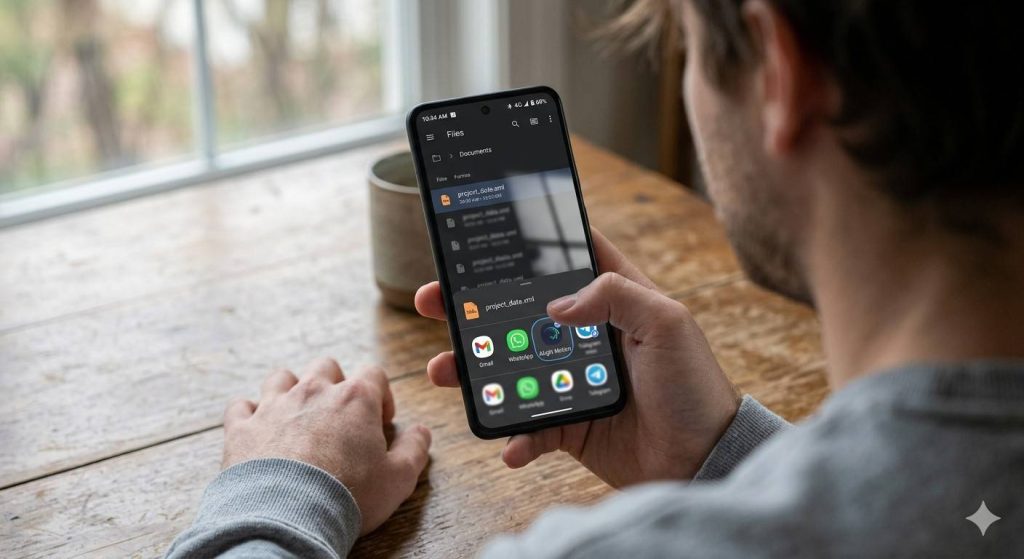
Go to the Downloads folder or wherever you saved the file. You will see a file with an `.xml` extension and an Alight Motion icon next to it if your app is installed correctly.
Step 4: Long Press the File
Press and hold the XML file for about one second. A menu will appear with options including Share, Copy, Move, etc.
Step 5: Tap Share
Tap the Share icon. Your device will show a list of apps that can handle this file type. Look for Alight Motion in that list.
Step 6: Select Alight Motion
Tap the Alight Motion icon. The app will open automatically and you will see a small notification at the bottom of the screen that says “Project Imported” or something similar.
Step 7: Find Your Imported Project
Open the Alight Motion app. Go to the Projects tab. Your imported XML project will appear at the top of the list, ready to open and edit.
Pro Tip: If Alight Motion does not appear in the share list, it usually means you have not opened the app recently. Open Alight Motion once, close it, then try sharing the file again.
Method 2 – Import XML via Google Drive
This method is excellent if someone shared the XML file with you through Google Drive, or if you want a more organized way to manage your preset collection.
Step 1: Upload the XML File to Google Drive
Open Google Drive on your Android device. Tap the “+” button at the bottom right corner. Select “Upload.” Navigate to your XML file and select it. Wait for the upload to complete you will see a progress bar.
Step 2: Open the File in Google Drive
Once uploaded, tap on the XML file in your Drive. It will open a preview screen.
Step 3: Tap the Three Dots Menu
In the top right corner of the file preview, tap the three vertical dots (more options).
Step 4: Select “Send a Copy” or “Open With”
Choose “Send a copy” or “Open with” from the menu. A list of compatible apps will appear.
Step 5: Choose Alight Motion
Tap Alight Motion from the list. The file will transfer and import automatically. Open the app and check your Projects tab your new preset will be waiting there.
Note: If you are on an older Android version, you might see “Open with” instead of “Send a copy.” Both options work the same way.
Method 3 – Import XML Using a Direct Link or Cloud Share
Many preset creators share their XML files using a direct Alight Motion cloud link. This is becoming increasingly popular because it works in one tap.
Step 1: Tap the Shared Link
The creator will share a link that looks like an Alight Motion cloud URL. Tap on it from your browser, WhatsApp, Telegram, or wherever you received it.
Step 2: Let Alight Motion Handle the Rest
If Alight Motion is installed, your device will ask which app to open the link with. Select Alight Motion. The app will open and import the preset automatically.
Step 3: Find It in Your Projects
Open the Projects tab in Alight Motion. The imported preset will be at the top. Done.
This method is the fastest and is used by most professional preset creators who share their work publicly on social media.
How to Import XML File in Alight Motion on iOS? (iPhone and iPad)
Here is the truth that most guides skip over:
- iOS does not support direct XML file imports the same way Android does.
- When you try to share an XML file to Alight Motion on an iPhone, the app simply does not appear in the share sheet.
Apple’s file system restrictions prevent this. But there are two methods that do work perfectly on iOS.
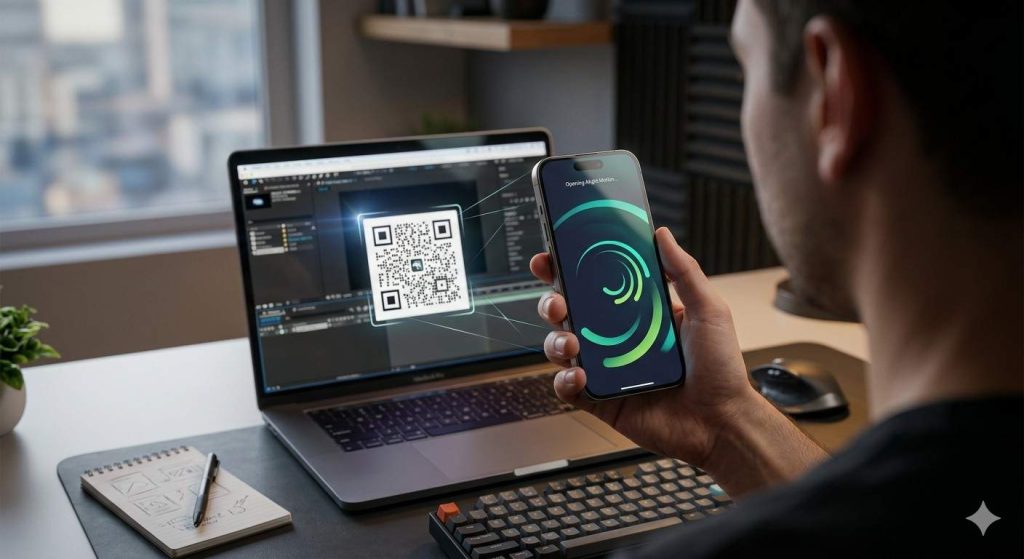
QR Code Method (Most Popular on iOS)
This is the most widely used method among iPhone users, and it works great once you understand the flow.
Step 1: Get the QR Code
The creator who made the preset will generate a QR code for their XML file. You can find these QR codes on YouTube videos, Instagram posts, Telegram channels, or preset websites.
Step 2: Scan the QR Code
Open your iPhone Camera app or a QR code scanner app. Point it at the QR code. You will see a notification or link pop up.
Step 3: Tap the Link
Tap the link that appears after scanning. Your device will ask which app to use. Select Alight Motion.
Step 4: Import Completes Automatically
Alight Motion will open and import the preset. Check your Projects tab it will be right there.
Important: The QR code method works because it links to an Alight Motion cloud package, not a raw XML file. The cloud package format is compatible with iOS.
Alight Motion Cloud Link Method
If the creator has shared an Alight Motion cloud link (not a QR code), the process is nearly identical.
Step 1: Open the Shared Link
Tap the link from wherever you received it. Your iPhone will ask which app to open it with.
Step 2: Select Alight Motion
Choose Alight Motion from the options. The app will launch and begin the import process.
Step 3: Note About Free vs Premium
The free version of Alight Motion iOS limits cloud imports to project packages under 5 MB in size. For larger presets, a premium subscription is required. Keep this in mind if your import stops midway.
How to Use Imported XML Presets Like a Pro?
Importing is just the beginning. Here is how to actually get the most out of any XML preset you bring into Alight Motion.
Open and Inspect the Layers First
Before changing anything, open the imported project and tap on each layer to understand what it does. Notice how effects are stacked, how keyframes are arranged, and how the timing is set up. This alone will teach you more than any tutorial.
Replace Media Without Breaking the Animation
To swap out a placeholder video or image, tap and hold the media layer. Select “Replace.” Choose your own photo or video. The animation and effects tied to that layer will stay intact only the visual content changes.
Adjust Text Layers
Double-tap any text layer to edit the text content. Change the font, color, or size to match your brand or style. Text layers keep all their animation keyframes even after you edit the words.
Tweak Effects and Timing
Once you are comfortable, start modifying the actual effects. Change color values, reduce or increase shake intensity, adjust the timing of transitions. This is how you start making presets your own instead of using the same look as everyone else.
Export in the Right Format
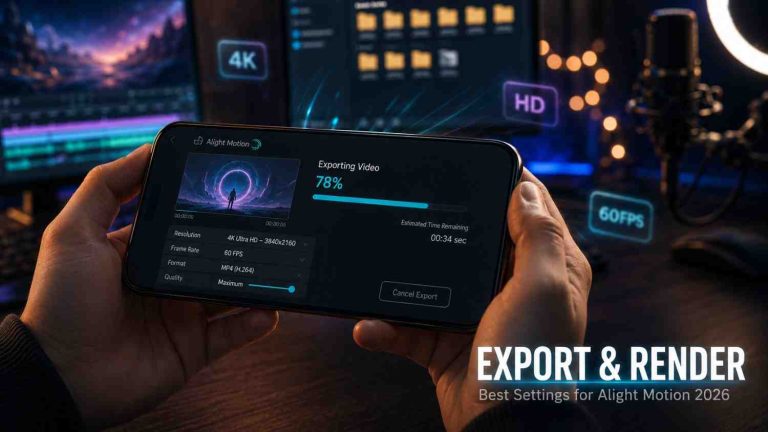
When your edit is done, go to the export menu. For social media, 1080p at 30fps works well for most platforms. For YouTube Shorts or Reels that need sharper quality, export at 1080p 60fps. Always export as MP4 for maximum compatibility.
How to Export XML File in Alight Motion? (Share Your Own Preset)
Once you build an effect or template you love, you can export it as an XML file and share it with others. Here is how:
Step 1: Open the Project You Want to Export
Find the project in your Projects tab. Tap the three dots (more options) next to the project name.
Step 2: Select Export or Share
Tap “Share” or “Export.” A submenu will appear with export options.
Step 3: Choose Export as XML
Select the XML file format option. Alight Motion will generate the file and save it to your device storage.
Step 4: Share It
Once exported, you can share the XML file directly through WhatsApp, Telegram, Google Drive, or any other platform. If you want to make it iPhone-friendly, use the Alight Cloud option to generate a shareable link or QR code that iOS users can import directly.
How to Use XML Files for TikTok, Reels, and YouTube Shorts?
This is where things get really practical. Here is a workflow that content creators use to produce viral-looking edits quickly:
Download a trending preset: Search for “Alight Motion XML 2026” on YouTube, Telegram, or Instagram. Find a shake or color grading preset that matches the current trend.
Import it using Method 1 or 3, File manager share or direct link import. Takes about 30 seconds.
Replace the placeholder clips with your own footage: Tap and hold the video layers, select Replace, and choose your clips. Keep the original timing this is where the magic of the preset lives.
Adjust the beat sync if needed: If the preset is music-synced, import your audio track, align the beats to the keyframe markers, and the cuts will fall perfectly on the beat.
Export and upload: MP4 at 1080p 60fps for Reels and Shorts. TikTok compresses heavily, so always export at the highest quality setting and let the platform do the compression.
This entire workflow, from import to export, can take under 15 minutes once you know what you are doing.
Common Problems While Importing XML Files (Fix Guide)
I have hit every one of these errors personally. Here is what actually fixes them.
XML File Not Opening or Unsupported File
What causes it: The XML file was created for a different software (like Premiere Pro or DaVinci Resolve), or it was made with a newer version of Alight Motion than what you have installed.
Fix: First, update Alight Motion to the latest version. Second, check the source of the file make sure it explicitly says it is for Alight Motion. A generic XML file will never open in Alight Motion regardless of what you do.
“Can’t Open File” Error
What causes it: This usually means the file is corrupted, was not downloaded completely, or was zipped and needs to be extracted first.
Fix: Delete the file and re-download it from the original source. If it came inside a ZIP or RAR archive, extract it first. Then try importing the actual `.xml` file, not the archive.
Import Option Not Showing (Alight Motion Not in Share Sheet)

What causes it: Android sometimes caches the list of apps available for specific file types. If you installed Alight Motion recently or updated it, the system may not have refreshed the list yet.
Fix: Open Alight Motion, use it for a few seconds, then close it. Now try sharing the XML file again from your file manager. If it still does not appear, go to Settings → Apps → Alight Motion → Storage → Clear Cache, then try again.
App Crashing During Import
What causes it: The XML file is too large for your device’s available RAM, or there is a compatibility issue between the file and your current app version.
Fix: Close all background apps before importing to free up RAM. If the crash continues, try importing the file on Wi-Fi (sometimes large cloud imports fail on slow mobile data). If nothing works, uninstall and reinstall Alight Motion, then try again.
Storage and Permission Issues
What causes it: Alight Motion was not granted storage permission, or your device storage is nearly full.
Fix: Go to your device Settings → Apps → Alight Motion → Permissions → Files and Media → Allow. Also check that you have at least 500 MB of free storage. Alight Motion needs working space beyond just the XML file size.
Version Compatibility Problem
What causes it: An XML file made in Alight Motion v5 or later may not import correctly in v4 or older. Version mismatches cause this silently the import appears to work but the project is empty or broken.
Fix: Always use the latest version of Alight Motion. Check the app store for updates before attempting any import. If you are using a modded version of the app, version compatibility issues are more common and harder to resolve.
Pros and Cons of Using XML Files in Alight Motion
Pros
Instant professional results: You get a complex, polished edit in seconds rather than hours. For content creators on tight schedules, this is a game-changer.
Learn advanced techniques by example: Opening and studying someone else’s XML is one of the fastest ways to level up your editing skills. You can see exactly how every effect was built, layer by layer.
Consistency across projects: Using the same XML preset across multiple videos keeps your content visually consistent. Great for building a recognizable brand aesthetic on social media.
Easy community sharing: The Alight Motion creator community actively shares XML presets. There is an enormous library of free, high-quality presets available if you know where to look.
Cross-device workflow: Export your project as XML on one device, import it on another. Useful if you edit on multiple phones or want to share work with a collaborator.
Cons
Limited customization without understanding the app: If you just import and export without learning how the effects work, you will always be dependent on other creators’ presets. The preset is a starting point, not a finish line.
Compatibility issues between versions: As Alight Motion updates, older XML files sometimes stop working correctly. Files that worked perfectly six months ago might need troubleshooting today.
Media is not included: The XML file only contains the project structure. If the original project used specific images, videos, or audio files, those are not inside the XML. You have to source or recreate any missing media yourself.
Dependency on preset creators: If you build your entire workflow around downloaded presets, you become dependent on whether those creators keep sharing. Building your own presets is the smarter long-term strategy.
Best Tips to Use Alight Motion XML Files Efficiently
Always keep the app updated: New versions of Alight Motion improve XML compatibility and add new features. Running an outdated version is the leading cause of import failures.
Organize your presets into folders: If you download a lot of XML files, create a dedicated folder in your phone storage called “Alight Motion Presets.” Inside that, create subfolders for categories like “Shake Effects,” “Color Grades,” and “Text Animations.” This saves enormous time when you are looking for a specific preset mid-edit.
Test presets on a short clip first: Before applying a new XML preset to a long video, test it on a 5-second clip. Some presets have performance issues on specific devices. Better to find out on a test clip than to wait 20 minutes for an export to fail.
Avoid very large XML files on low-end devices: A preset with 30 layers and 4K assets will struggle on a phone with 3GB of RAM. Look for “lite” versions of presets or simplify the layers after importing.
ack up presets you love: If you find an XML preset that you use regularly, save a copy to Google Drive. Preset websites come and go, and links expire. Keeping your own backup library means you never lose access to the presets that define your editing style.
Is It Safe to Use XML Files in Alight Motion?
Short answer: yes, if you are downloading from trusted sources. XML is a plain text format it cannot carry viruses or malware in the way an executable file can. The risk is not from the XML file itself.
The real risk comes from the websites and channels that distribute XML presets. Some shady sites bundle malicious apps alongside preset downloads, or they require you to download an APK to “unlock” the preset. Never install unknown APKs from preset sites.
Safe sources for Alight Motion XML files include:
- The official Alight Motion community forums
- Well-known YouTube channels that demonstrate the preset on video before sharing
- Verified Telegram channels with large followings and active moderation
- Trusted preset websites that have been around for more than a year and have user reviews
Red flags to avoid:
- Sites that require you to complete surveys or install apps before downloading
- Channels that promise “unlimited premium XML files” for free with a suspicious link
- Any download that comes as a `.apk` file instead of `.xml`
The XML file itself is safe. Always be cautious about where you are downloading it from.
Frequently Asked Questions
How do I import XML file in Alight Motion?
Download the XML file to your Android device. Open your file manager, navigate to the file, long press it, tap Share, and select Alight Motion from the list of apps. The project will import automatically and appear in your Projects tab.
Why is my XML file not importing?
The most common reasons are: the file is not actually made for Alight Motion, the app needs to be updated, Alight Motion does not have storage permission on your device, or the file is corrupted and needs to be re-downloaded. Go through the checklist in the Requirements section above and fix each item one by one.
Can I use XML presets on iPhone?
Yes, but not through direct file sharing. iPhone users must use the QR code method or an Alight Motion cloud link. The creator who made the preset needs to share it in one of these formats for iPhone users to import it. Direct `.xml` file imports do not work on iOS due to Apple’s file system restrictions.
How to share XML file in Alight Motion?
Open the project you want to share, tap the three dots next to the project name, and select Share or Export. Choose XML as the export format. The file will save to your device and you can send it through any platform. For iOS users, use the Alight Cloud option to generate a shareable link or QR code.
Are XML presets free to use?
Most XML presets shared within the Alight Motion community are free. There are also paid preset packs from professional creators that offer higher quality and more variety. Free presets are widely available on YouTube, Telegram, and dedicated preset websites. Always check if the creator requires attribution before using their preset in public content.
Can I edit XML presets after importing?
Absolutely! Once imported, an XML project is just like any other Alight Motion project. You can edit every layer, change every effect, modify text, replace media, and adjust timing. The imported preset is a starting point everything about it is fully editable. This is actually one of the best things about XML presets.
What is the difference between XML and QR code presets?
They are essentially the same thing. A QR code is just a way to share a link to an Alight Motion cloud-hosted version of a project. When you scan the QR code, it opens a link that triggers the same import process as any cloud link. The QR code method is just more convenient for sharing visually, especially on social media where someone can just point their camera at a post.
Final Thoughts
Importing XML files in Alight Motion is one of those skills that seems confusing until it suddenly clicks and then you wonder how you ever edited without it.
The key things to remember: on Android, you share the file from outside the app, not import from inside it. On iOS, you use QR codes or cloud links. Always update the app before importing. And always check that your file is actually made for Alight Motion before spending time troubleshooting.
Once you get comfortable with importing, take it a step further. Study the presets you love. Modify them. Build your own. Export and share. The Alight Motion XML ecosystem is built on creators sharing with each other and the best way to get better is to be part of that cycle.
Start with one preset today. Import it, open every layer, and just explore what is inside. That curiosity is how beginners become pros.