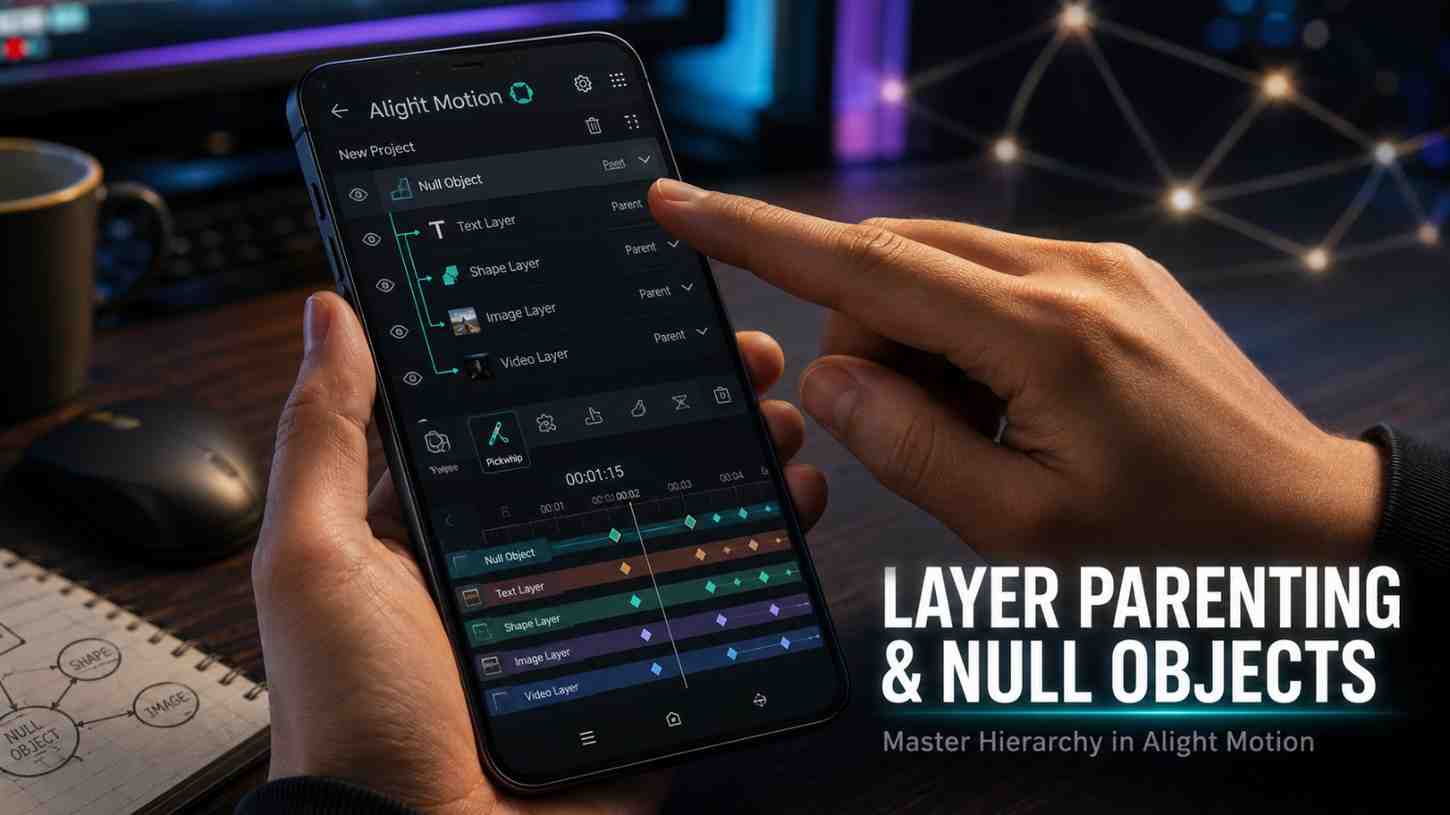
Layer Parenting & Null Objects in Alight Motion | Complete Beginner to Pro Guide (2026)
There was a time when I would spend two hours animating a logo with five separate elements, manually keyframing each piece to move together. Every time the client asked for a small position tweak, I had to redo every single layer’s animation from scratch. It was painful, slow, and honestly killed my love for the editing process. Then a senior editor watched me struggling one afternoon and asked why I was not using parenting. That one question saved me hundreds of hours over the next year.
Layer parenting and null objects in Alight Motion are the kind of features beginners skip and pros never let go of. They look technical on the surface but become second nature within a few projects. Once you understand them, you stop fighting with the timeline and start treating it like a real motion design workspace. Every animation becomes faster, every edit feels lighter, and complex scenes that used to take days come together in hours.
This guide is built from three years of using Alight Motion daily for client reels, AMV edits, gaming intros, and YouTube content. I will walk you through what parenting is, how null objects fit in, the exact step-by-step process I use, and the pro techniques that made my workflow ten times faster. Beginners, mobile editors, and even seasoned motion designers exploring mobile workflows will find this practical and immediately useful.
What Is Layer Parenting in Alight Motion?
Before we touch the app, let me explain what parenting actually does and why it matters so much for serious editing work.
Understanding Parent and Child Layers
Parenting is a relationship between two layers. One layer becomes the parent, and another becomes the child. Whatever the parent does, the child follows. Move the parent, and the child moves with it. Rotate the parent, and the child rotates around the same pivot. The child still has its own properties, but it inherits motion from the parent automatically.
How Layer Parenting Works
Inside Alight Motion, you assign a parent through the layer properties panel. Once linked, the child layer’s transformations stack on top of the parent’s. Think of it like a hand holding a pen. When you move your hand, the pen moves with it, but you can still tilt the pen independently in your fingers. That is the parent-child relationship in motion graphics.
Difference Between Normal Layers and Parented Layers
A normal layer stands alone. Its motion has to be keyframed individually, even if it should logically move with other layers. A parented layer borrows motion from its parent, which means one set of keyframes can drive five, ten, or twenty layers simultaneously. The time savings on complex projects are enormous.
Why Parenting Is Important in Motion Graphics?
Every professional motion design project relies on hierarchy. Logos have multiple elements that move together. Characters have body parts that follow the torso. Scenes have layered backgrounds that pan with the camera. Without parenting, you would animate every piece by hand. Layer parenting and null objects in Alight Motion IOS bring this professional workflow into mobile editing.
Benefits of Using Layer Parenting in Alight Motion
If you are still wondering whether parenting is worth learning, here are the reasons I push every student I mentor to master it early.
Faster and More Efficient Editing
One animation can drive dozens of layers. That means projects that used to take six hours now take two. Multiply that across a year of client work, and parenting alone gives you back hundreds of hours.
Better Project Organization
Parented layers naturally group together in your timeline. Instead of staring at a chaotic list of thirty independent layers, you see clean parent-child groups. When you open the same project two weeks later, everything still makes sense.
Smooth Synchronized Animations
Manually syncing multiple layer animations almost always produces tiny timing mismatches. Parenting eliminates this entirely. Children inherit motion frame by frame, so synchronization is perfect by default.
Creating Professional Motion Graphics
Complex animations like logo reveals, character rigs, and dynamic title sequences become realistic to attempt on mobile. Without parenting, these would require desktop software and hours of manual work.
Easier Control of Multiple Layers
Need to reposition twenty layers because the client wants the entire scene shifted right? With parenting, you move the parent once. Without it, you reposition twenty layers individually and pray nothing breaks.
Layer Parenting Basics
Before we jump into the steps, get comfortable with these foundational concepts. They make the rest of this guide click instantly.
Understanding Parenting Hierarchy
Hierarchy is the chain of parent-child relationships in your project. A child can also be a parent to other layers, creating multi-level hierarchies. Picture a tree, where the trunk is the top parent, branches are children, and leaves are children of branches.
Parent Layers vs Child Layers
The parent leads. The child follows. Parents typically hold the main animation, while children carry the visual content. A null object often serves as the parent because it does not show on screen, leaving the visual layers free to be styled however you want.
How Parenting Affects Animation?
When you animate the parent’s position, every child shifts the same amount. Animate rotation on the parent, and children rotate around the parent’s anchor point. Scale the parent, and children scale together as one unit. This inheritance is the core magic of parenting.
Common Parenting Terms Beginners Should Know
Anchor point, hierarchy, null object, child layer, parent layer, and transform properties are the terms you will hear most often. Get familiar with these now, and the rest of motion design becomes much easier to learn.
How to Parent Layers in Alight Motion? (Step-by-Step)
This is the exact process I follow on every project that uses parenting. Open the app and follow along.
Step 1: Create a New Project
Tap the plus icon and start a fresh project. Set your aspect ratio based on the platform, 9:16 for Reels and Shorts, 16:9 for YouTube. Use 60 fps for smoother motion.
Step 2: Import Media and Create Layers
Add the layers you want to work with. For learning, try a simple setup with three or four elements that should move together, like a logo with separate icon, text, and tagline pieces.
Step 3: Select the Child Layer
Tap the layer you want to become a child. A blue outline confirms selection. Open its properties panel to access the parenting option.
Step 4: Assign a Parent Layer
Inside the layer properties, find the Parent option and tap it. A dropdown shows all available layers. Pick the one you want as the parent. The child immediately inherits the parent’s current transformations.
Step 5: Test Layer Movement
Move the parent layer manually. Watch the child follow exactly. If something looks off, double-check your selections. Parenting issues are almost always about the wrong layer being assigned.
Step 6: Animate the Parent Layer
Add keyframes to the parent’s position, rotation, or scale. Move forward in the timeline and change the values. Alight Motion animates the parent, and every child layer follows automatically. One keyframe, multiple results.
Step 7: Fine-Tune Layer Positioning
Children can still be repositioned independently. If a child needs its own offset, just move it. The parent’s animation continues to drive overall motion while child-specific tweaks stay intact.
Step 8: Preview and Export the Project
Play through your timeline. Check that all parented layers move together cleanly. When you are satisfied, export at 1080p minimum with bitrate above 20 Mbps for crisp final quality.
Understanding Parenting Order and Hierarchy
Hierarchy is what makes parenting genuinely powerful. Master this concept and complex animations become straightforward.
How Hierarchy Controls Layer Movement
Top-level parents control the largest scope of motion. Children at deeper levels inherit motion from everything above them in the chain. A character animation might have a torso as the top parent, arms as children of the torso, and hands as children of the arms. Move the torso, and the entire arm and hand assembly comes along for the ride.
Organizing Complex Layer Structures
Plan your hierarchy before you start animating. Sketch a quick tree diagram if needed. Knowing which layer drives what saves hours of confusion later, especially on projects with twenty or more layers.
Managing Multiple Child Layers
A single parent can have unlimited children. This is perfect for grouping decorative elements that should all move as one. Particle systems, multi-element logos, and animated text fields all benefit from this pattern.
Avoiding Hierarchy Conflicts
Never try to make two layers parent each other. Circular parenting confuses the app and produces unpredictable motion. Always keep your hierarchy moving in one direction, top to bottom.
Animating Parented Layers in Alight Motion
Animation is where parenting truly proves its worth. These are the techniques I use most often on client projects.
Using Keyframes with Parent Layers
Apply keyframes to the parent’s transform properties just like you would on any normal layer. Every child receives the animation automatically. This is the fundamental time-saver that makes parenting indispensable.
Creating Smooth Motion Animation
Always pair parent keyframes with easing curves. Linear motion feels robotic. Ease-in-out produces the natural acceleration and deceleration that real-world motion has. Drag the velocity curve into an S-shape for the best results.
Syncing Multiple Objects Together
Need ten icons to fly across the screen in perfect formation? Parent them all to a single parent layer, animate the parent, and they fly as one. Without parenting, this would require careful keyframing on every single icon.
Adding Rotation, Scale, and Position Animation
All three properties can animate on the parent simultaneously. A logo can spin in, scale up, and slide into position at the same time, with every sub-element following the combined motion.
Controlling Motion Timing and Easing
Timing controls the entire feel of your animation. Slow parent animations feel cinematic. Fast ones feel energetic. Match the pace to your audio for the strongest emotional response.
Effects and Parenting in Alight Motion
Effects interact with parenting in specific ways. Understanding this saves frustration on advanced projects.
Using Effects with Parented Layers
Effects applied to a parent do not automatically apply to children. Each layer keeps its own effect stack. If you want a glow on the entire group, apply it to each child or use the parenting helper effect.
Understanding Parenting Helper Effects
The parenting helper is a special effect that controls how children respond to parent animations. It is particularly useful when you want partial inheritance, like having children follow position but not rotation. This effect unlocks subtle workflow refinements that pros rely on.
Combining Motion Blur with Parenting
Motion blur applied to the parent adds realism to grouped animations. The blur tracks the inherited motion of every child layer, giving the entire group a unified, professional feel.
Applying Transitions to Linked Layers
Transitions can be applied to individual children while the parent continues to drive global motion. This separation lets you create complex scenes where elements transition in and out while still flying together as a group.
Creating Cinematic Motion Effects
Combine parenting with Camera Objects in Alight Motion Old Version for fully cinematic scenes. A parent layer can mimic camera movement while individual children animate independently within the moving frame.
What Are Null Objects in Alight Motion?
Null objects are the unsung heroes of professional motion graphics. They look like nothing on screen but do most of the heavy lifting behind the scenes.
Understanding Null Objects
A null object is an invisible layer that exists only to be animated and parented to. It has no visual content, just transform properties. Think of it as an invisible handle that you grab to move multiple visible layers at once.
How Null Objects Work
You add a null object to your timeline, parent your visible layers to it, then animate the null object. The visible layers follow the null’s motion, but the null itself never renders in the final video. Clean, organized, and powerful.
Difference Between Layers and Null Objects
Regular layers have visual content like images, text, or shapes. Null objects have nothing visual. They are pure transform containers. This invisibility is exactly what makes them so useful for organizing complex animations.
Why Editors Use Null Objects
Null objects let you control groups of layers without polluting your scene with extra visuals. They are perfect for character rigs, complex camera setups, multi-element logo animations, and any scenario where you want a clean control point separate from your visible content.
How to Add a Null Object in Alight Motion?
Adding a null object takes seconds once you know where to look. Here is the process I follow every time.
Creating a Null Object
Tap the layer menu and select the null object option. It appears in your timeline as an invisible layer. You can name it something memorable like Main Control or Logo Rig so you find it quickly later.
Connecting Layers to Null Objects
Select each visible layer that should follow the null’s movement. Open its parenting option and choose the null object as the parent. Now your null controls all of them at once.
Controlling Multiple Layers with One Object
Animate the null object’s position, rotation, or scale. Every parented layer follows. This is the cleanest way to manage grouped animation in mobile editing.
Editing Motion Through Null Objects
If you want to change the entire group’s animation, you only edit the null object. The children never need to be touched. This is what makes revisions on client projects ten times faster.
Using Null Objects for Parenting
Null objects unlock workflow patterns that would be painful or impossible with regular parent layers. Here is how I use them on real projects.
Creating Group Animations
Logo intros with ten or fifteen elements become manageable when you parent everything to a single null. Animate the null once, and the entire logo flies in, spins, scales, and settles into place as a unit.
Building Complex Motion Graphics
Multi-element motion graphics like infographics, animated explainers, and lower thirds rely heavily on null objects. They keep complex scenes manageable and edits painless.
Managing Camera and Object Movement
Pair null objects with Camera Objects in Alight Motion for sophisticated camera rigs. The null can hold the camera path while the camera itself focuses on framing details.
Using Null Objects for Parallax Effects
Group background, midground, and foreground layers under separate null objects. Animate each null at different speeds to create 3D Effects in Alight Motion style parallax that looks cinematic and stays easy to edit.
Improving Workflow in Large Projects
On projects with thirty or more layers, null objects become essential. They turn what would be unmanageable chaos into a clean, hierarchical structure that you can edit confidently weeks after starting.
Advanced Parenting Techniques in Alight Motion
Once the basics feel comfortable, these techniques will push your work into truly professional territory.
Multi-Level Parenting
Build hierarchies three or four levels deep. A null can parent another null, which parents visible layers. This is how character animation and complex logo rigs are structured in professional motion design.
Parenting Text and Shape Layers
Parent text to a null to animate kinetic typography that all moves together. Parent shape layers to nulls for animated infographics. These workflows save hours on every project.
Combining Parenting with Camera Objects
Parent scene elements to a camera object for true parallax. Or parent the camera to a null for controlled cinematic moves. The combinations unlock cinematic scenes that desktop editors take pride in.
Creating 3D-Style Animations
Parent layers at different Z-axis distances to a null object. Animate the null, and the entire 3D-style scene moves with realistic depth. This is the foundation of cinematic mobile editing in 2026.
Linking Motion Across Multiple Scenes
Use a single null object across multiple scenes for consistent motion language throughout a video. Brand intros, transitions, and outros all benefit from this shared control approach.
Professional Motion Design Techniques
Combine parenting with Masking Feature in Alight Motion for layered reveals, with 3D Effects in Alight Motion for cinematic depth, and with motion blur for realistic movement. Layered together, these techniques produce work that rivals desktop motion graphics studios.
When Should You Use Layer Parenting?
Parenting shines in specific situations. Here are the use cases where it consistently saves time and improves quality.
Character Animation
Limbs, torsos, and heads all need to move together while still rotating independently. Parenting is the only sane way to animate characters on mobile.
Logo Animation Projects
Multi-element logos with text, icons, and decorative pieces benefit enormously from parenting. One null controls the entire reveal, scale, and settle motion.
Social Media Reels and Shorts
Fast-paced reels often have multiple text overlays, icons, and decorative elements that should move in sync with the beat. Parenting to a null makes beat-matched group animations easy.
AMV and Gaming Edits
AMVs frequently use multi-layer compositions that move together during dramatic moments. Parenting makes these complex effect sequences manageable on a phone.
Cinematic Motion Graphics
Anywhere you need professional, organized, scalable animation, parenting earns its place. Title sequences, brand intros, and explainer videos all rely on it heavily.
Common Parenting Mistakes to Avoid
I made every one of these mistakes during my first months learning parenting. Save yourself the trouble.
Incorrect Layer Linking
Always double-check which layer you parented to which. Wrong parent assignments produce motion that looks subtly off, and tracking down the cause can take longer than just being careful from the start.
Broken Animation Hierarchy
Avoid deleting parent layers mid-project. If you must, reassign children to new parents first. Orphaned children produce unpredictable behavior that is annoying to debug.
Too Many Parent Connections
Excessive parenting creates spaghetti hierarchies that confuse you weeks later. Keep your structure as flat as possible while still serving the animation’s needs.
Misaligned Anchor Points
Children rotate around the parent’s anchor point. If the parent’s anchor sits in the wrong place, rotation animations spin children in weird arcs. Always verify anchor positions before animating rotation.
Overcomplicated Motion Structures
Just because you can build five-level hierarchies does not mean you always should. Simple projects deserve simple parenting. Reach for complexity only when it genuinely solves a problem.
Troubleshooting Parenting Issues in Alight Motion
Even careful workflows hit problems. Here are the most common parenting issues and how I fix them.
Why Parented Layers Are Not Moving Correctly
Check that the parent assignment is correct. Also verify that the parent layer itself is actually being animated. Children cannot follow motion that does not exist on the parent.
Fixing Hierarchy Problems
If movement looks chaotic, your hierarchy probably has a conflict somewhere. Trace each parent-child relationship one by one. The bug is almost always a layer parented to the wrong target.
Solving Lag in Complex Projects
Heavy parenting chains can slow down preview performance on older devices. Lower preview quality during editing, close background apps, and limit your project to manageable layer counts.
Restoring Missing Parent Connections
If a parent gets accidentally cleared, you simply reassign it through the properties panel. The original animation remains intact and resumes following the parent immediately.
Fixing Export and Rendering Issues
Sometimes complex hierarchies cause subtle export glitches. If something looks fine in preview but exports incorrectly, try restarting the app or simplifying the parent chain temporarily to identify the cause.
Tips for Better Parenting and Null Object Workflow
These are the habits that took my workflow from cluttered to genuinely professional.
Keep Layer Names Organized
Name every layer descriptively. Logo Null, Text Group, Icon Top, Background Far. Future you, opening this project after a long break, will thank present you for the clarity.
Use Null Objects for Complex Scenes
Anytime your project has more than ten layers that should move together, reach for a null object. It keeps your hierarchy clean and your edits painless.
Avoid Unnecessary Parent Chains
Just because you can chain five levels of parenting does not mean you should. Use the simplest hierarchy that solves your problem. Complexity for its own sake is a trap.
Test Animations Frequently
Preview after every major change. Catching a hierarchy issue immediately is ten times easier than tracking it down two hours later.
Use Easing for Smooth Motion
Apply ease-in-out to parent keyframes for natural acceleration. Linear motion almost always feels artificial, especially on grouped animations where every child reveals the robotic timing.
Keep Projects Lightweight for Better Performance
Heavy parenting on huge layer counts can slow even powerful phones. Optimize as you go, removing layers you no longer need and grouping similar elements under shared nulls.
Frequently Asked Questions
What is layer parenting in Alight Motion?
Layer parenting is a feature that links one layer (the child) to follow the transformations of another layer (the parent). When the parent moves, rotates, or scales, the child inherits that motion automatically, making complex animations far easier to manage.
How do you connect layers in Alight Motion?
Select the layer you want as the child, open its properties panel, find the Parent option, and choose your parent layer from the dropdown. The child instantly begins following the parent’s motion.
What are null objects used for?
Null objects are invisible layers used as control points for grouped animations. You parent visible layers to a null object and animate the null itself, which moves the entire group together while keeping your scene visually clean.
Can beginners use parenting features easily?
Yes, beginners can master basic parenting within their first hour of practice. Start with two-layer hierarchies, then progress to null objects and multi-level structures as you gain confidence.
Why are my parented layers not working?
The most common causes are wrong parent assignment, a parent layer that has no animation to inherit, or circular parenting where two layers try to parent each other. Check your hierarchy carefully and reassign if needed.
What is the benefit of using null objects?
Null objects let you control groups of visible layers from a single invisible control point. They keep your timeline organized, make revisions fast, and unlock professional motion design workflows on a mobile device.
Can parenting improve animation quality?
Yes, parenting eliminates the timing mismatches that come from manually keyframing multiple layers. Group animations become perfectly synchronized, and complex motion graphics gain a polished, intentional feel that manual workflows rarely achieve.
Are layer parenting and null objects available in the free version?
Yes, both features are available in the free version of Alight Motion. Premium adds higher export resolutions, watermark removal, and additional effects, but parenting and null objects remain fully usable without paying.
Final Thoughts
Looking back, learning layer parenting and null objects in Alight Motion was one of the biggest workflow upgrades of my editing career. It changed how I approach every project, from quick reels to multi-day client edits. Today, I rarely build anything beyond a single-layer animation without reaching for parenting in some form.
Start small. Try parenting two layers on your next project. Once that feels natural, add a null object and group three or four layers under it. Within a few weeks of consistent practice, you will wonder how you ever animated without these tools. The workflow becomes faster, the results look cleaner, and revisions stop feeling like punishment.
Parenting and null objects reward thoughtfulness. The more you plan your hierarchy before animating, the better your results will be. If this guide helped you, share it with another editor still keyframing every layer by hand. There is no reason to suffer through that workflow when these features sit waiting inside the app.